Free browser tool
Photo to Pixel Art Converter
Turn a photo into pixel art in your browser. Choose a pixel size, try an included retro palette, compare the result, and download a PNG.
Upload a photoYour photo is processed locally in your browser and is not uploaded to our server.
Convert your photo
Upload a photo, refine the pixel size or palette, then download the PNG result.
How to turn a photo into pixel art
- 1
Choose a clear photo
Photos with a clear subject and simple silhouette are easier to recognize after pixelation.
- 2
Set the pixel size
Start smaller to preserve more detail, or make the blocks larger for a chunkier retro look.
- 3
Compare and download
Try Original colors or an included palette, review the before/after preview, and download a PNG.
A practical starting point for photos
Pixelation reduces fine detail. If a face, pet, object, or scene is important, begin with a smaller pixel size and look at the preview before increasing it. A larger size creates a stronger pixel-art effect but can make small features harder to recognize.
Keep Original colors when you want the result to stay close to the photo. Choose a built-in palette when a limited retro color treatment matters more than preserving every source color.
What happens to a portrait photo
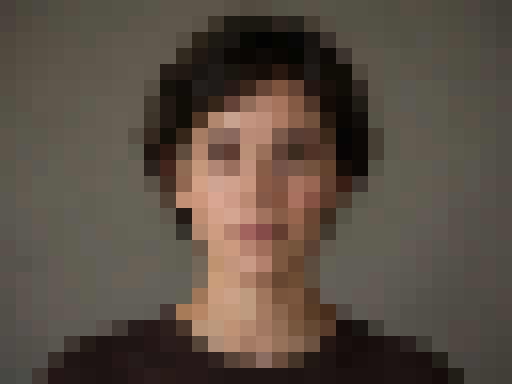
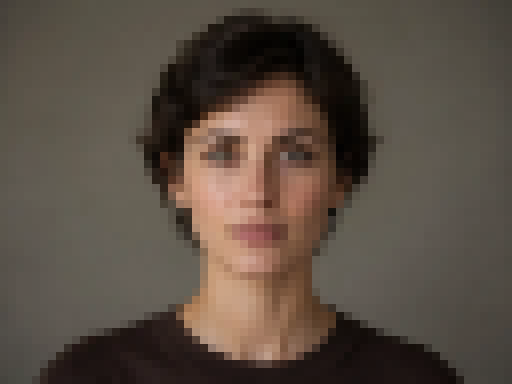
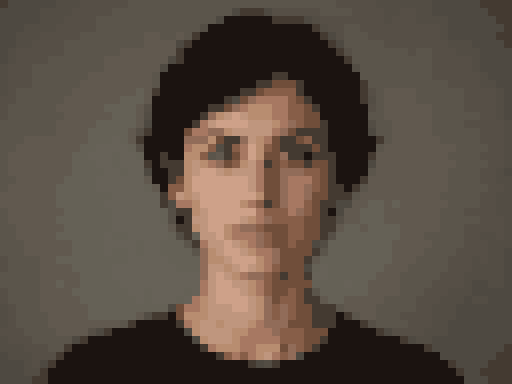
Faces are the hardest photo subject because small changes to the eyes and mouth change the whole expression. These are real outputs from the converter on a 960 × 720 head-and-shoulders portrait.
Why the background matters in photos
When you limit colors, the converter gives more colors to the tones that cover more of the picture. In the 16-color portrait above, seven colors are greys from the studio backdrop, two are the dark hair and sweater, and only seven are skin tones. Cropping closer to the face, or using a photo with a plain, contrasting background, leaves more of the color budget for the face itself.
For group photos, pets in busy rooms or landscapes with many small details, expect to need 64 or 128 columns. For a profile picture or avatar, a tight crop at 32 or 64 columns usually works better than a wide shot at 128.
Photo to pixel art FAQ
Are photos uploaded to ImagePixel?
No. This conversion runs locally in your browser, so ImagePixel does not upload your photo to its server.
What pixel size should I use for a photo?
Start with a smaller pixel size when you want to keep more details. Increase it gradually if you prefer larger, more visible pixel blocks.
Can I download the finished image?
Yes. After reviewing the pixel-art result, you can download it as a PNG file.
Need the broader image conversion workflow? Open the Image to Pixel Art Converter. Pixelating a whole image? Use the pixelate image tool or read the pixel size and palette guide.