ImagePixel guide
Turn Pixel Art into a Bead or Cross-Stitch Pattern with Color Counts
Fuse beads, cross-stitch, knitting charts, mosaic tiles and block builds all share the same structure as pixel art: a grid of cells, each filled with one color from a limited set. That means a pixel-art converter can do most of the charting work for you, as long as you set it up for a physical build rather than for a screen. This guide shows the settings that matter and walks through one complete example.
Updated October 9, 2026. Every example image on this page was produced by the current ImagePixel converter code with the settings shown in its caption.
1. Size the grid to your board or fabric
In a physical pattern, one cell is one bead or one stitch, so the grid width is a real-world size. Work backwards from what you are making:
- Fuse beads: a common large square pegboard is 29 × 29 pegs, and standard (midi) beads are about 5 mm wide. A 32-column design is slightly wider than one board, about 16 cm across.
- Cross-stitch: on 14-count Aida there are 14 stitches per inch, so 32 columns is about 2.3 inches (5.8 cm) wide and 64 columns about 4.6 inches.
- Block builds: one cell is one block; see the wool and concrete comparison for real counts.
The converter's column presets are 16, 32, 64 and 128. If your board or design needs a different width, crop the source image so that the preset width fits the area you want, or plan to trim a row or column by hand. Rows follow the image ratio, so crop to a square first if you want a square chart.
2. Limit colors to what you can actually buy
Every extra color is another bag of beads or another skein of thread. Set Max Colors to 8 or 16, or pick a named palette, and watch the color-count panel: it lists each color with the number of cells that use it. Colors with only a handful of cells are candidates to merge by hand.
Leave dithering off. Dithering scatters single cells of different colors to fake gradients. That looks fine on a screen but means hundreds of isolated beads or stitches that are slow to place and look like mistakes up close.
3. Export a chart with grid lines and symbols
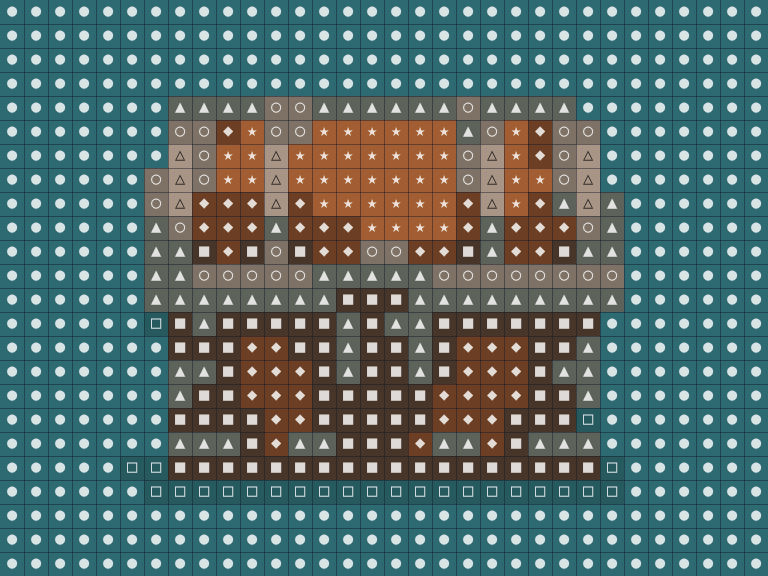
With a palette or color limit active, turn on Symbols in the preview and tick Include grid lines in export and Include symbols in export before downloading (on the homepage converter, click Advanced to show the export options). Each color gets a shape (● ■ ▲ ◆ ★ ○ □ △ ◇ ☆, then letters A–Z), assigned in order from the most-used color to the least. Symbols matter because printed colors are often hard to tell apart, and a black-and-white printout stays usable.
Symbols need room. They are drawn only when each cell is at least 9 pixels wide on screen; at wider grids on a small screen the preview will say the grid is too fine and suggest 32 columns. In the grid export each cell is drawn up to 24 pixels wide, so a 32-column chart downloads at 768 × 576 pixels.
A complete example
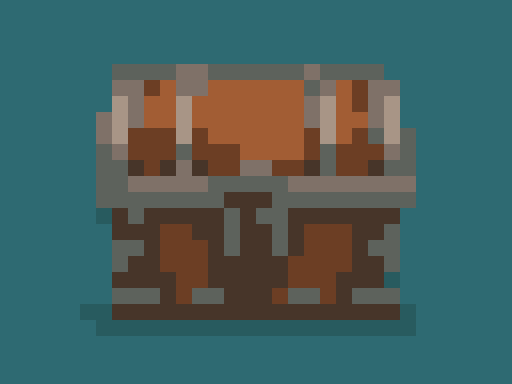
The treasure-chest illustration below was converted at 32 columns with Max 8 colors and dithering off, then exported with grid lines and symbols. The chart is exactly what the download produces.
| Symbol | Color | Cells | Where it is used |
|---|---|---|---|
| ● | #2D6A72 | 446 | Background |
| ■ | #473529 | 82 | Dark wood |
| ▲ | #5D625B | 75 | Metal bands |
| ◆ | #6C3F25 | 52 | Wood |
| ★ | #A25E32 | 40 | Lid highlight |
| ○ | #7E7266 | 36 | Light metal |
| □ | #265A5F | 25 | Background shadow |
| △ | #A89585 | 12 | Highlights |
| Total | 768 |
Two lessons from this list. First, 471 of the 768 cells (the ● and □ rows) are background. If you only want the chest, start from a PNG with a transparent background: fully transparent cells stay empty and are left out of the counts, which here would cut the bead count by more than half. Second, the △ color appears in only 12 cells. In a real project you might replace it with the ○ color and save buying a whole bag for a dozen beads.
4. Match the chart colors to real beads or thread
The hex values in the chart are screen colors, not product codes. ImagePixel does not include bead or floss brand palettes, so the last step is yours: hold each color up against your supplier's color card and write the product name next to the symbol. Do this in daylight, and match the two or three most-used colors first, because they decide how the finished piece looks. Small highlight colors can be adjusted freely.
If a shop sells beads by count, add a margin of about 10 percent for losses. Beads roll away; thread runs short at the end of a row.
Common problems
- The design is too big for one board. Lower the column count, or plan a multi-board piece by splitting the chart into 29-cell sections.
- Faces look muddy. Crop to the face, use a plain background and raise the column count; small faces need at least 32 columns to keep eyes and mouth.
- Two colors are hard to tell apart in the chart. That is what the symbols are for; print the symbol version.
- The chart has many single stray cells. Make sure dithering is off, then clean up remaining strays by hand.